I get it. You just spent a small fortune on a foldable phone and now you're wondering what exactly you paid for. If you bought the phone, you probably want to know about the Samsung Galaxy Z Fold 8 Note Assist tool. Well, you're in the right place. I've been using this device for a few weeks now. Honestly, the Note Assist feature is one of the more useful things Samsung has added in recent years. It isn't perfect. But it actually saves time.
Most of us take terrible notes. We scribble things during a Zoom call, mix English with Hindi, and then look at the screen an hour later with absolutely no idea what we wrote. This is exactly the problem Galaxy AI Note Assist tries to fix. It turns your chaotic brain dump into something readable. And unlike some older tools, it actually runs quite well on the device itself (which makes sense, actually).
What exactly is Galaxy AI Note Assist?
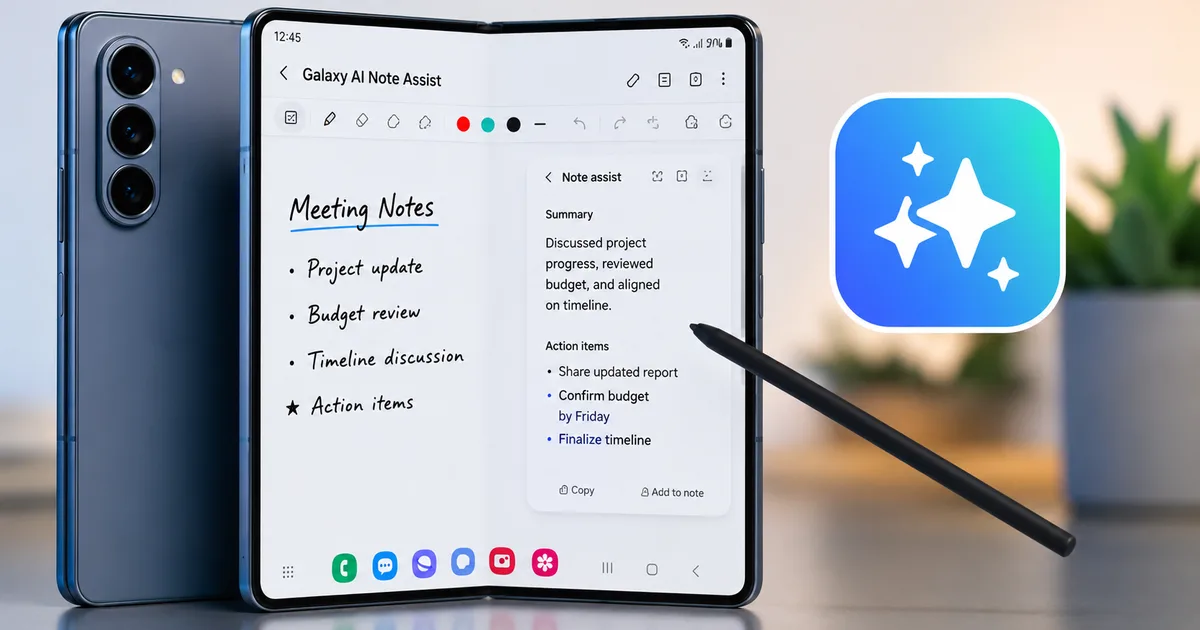
First, understand what you're dealing with. Note Assist is a built-in feature in the Samsung Notes app on your Galaxy Z Fold 8. It uses artificial intelligence to reformat, summarize, translate, and correct the spelling in your notes. Basically, it's an editor that lives inside your phone.
You can use it with typed text. You can use it with handwritten notes if you write with the S Pen. If you're a freelancer drafting pitches, a student at Delhi University trying to make sense of a lecture, or a corporate manager dealing with endless strategy meetings, this tool is genuinely helpful. I think it's mostly because it stays out of your way until you need it.
According to tech outlets, Samsung isn't charging extra for these current Galaxy AI features. You already paid for the phone. So you get the features without a monthly subscription.
Setting up Note Assist on your Galaxy Z Fold 8
Samsung doesn't turn everything on by default. They want you to agree to a bunch of terms and conditions first (annoying, I know). Follow these steps to get it running.
- Open the Settings app on your Fold 8.
- Scroll down and tap on Advanced features.
- Select Advanced intelligence.
- Tap on Samsung Notes.
- Toggle the switch to turn on Note Assist.
You'll see a prompt asking you to download language packs. If you're in India, you absolutely need to get the English (India) pack and the Hindi pack. The Hindi pack is around 400MB. So maybe do this on Wi-Fi instead of your 5G data plan. Once you download the languages, the phone processes a lot of the translation and text correction locally. This means your private meeting notes don't necessarily have to go to a server somewhere.
How to use the auto-format feature
This is my favorite part of the tool. Let's say you're in a meeting and you just type out a stream of consciousness. Bullet points are missing. The capitalization is all wrong. It looks like a mess.
Just follow these steps.
- Open your messy note in the Samsung Notes app.
- Look for the Galaxy AI icon at the bottom of the screen. It looks like three little stars.
- Tap the stars and select Auto format.
The app gives you two choices: Headers and bullets or Meeting notes.
If you choose Headers and bullets, Note Assist breaks your text down into logical sections. It adds bold headers. And it turns your rambling sentences into clean bullet points. I tried this with a recipe I copied from a YouTube video, and it organized the ingredients and the steps perfectly. In my experience, it handles lists better than plain paragraphs.
If you choose Meeting notes, it formats the text to look like professional minutes. It highlights action items and decisions. Honestly, if you send meeting summaries to your team, this feature alone will save you twenty minutes every day.
Summarizing long documents
Nobody likes reading a 4000-word document on a phone screen. Even on the large inner display of the Fold 8, it gets tiring. Note Assist can summarize long notes in seconds.
Just open the note, tap the AI star icon, and select Summarize. The tool gives you a few bullet points covering the main ideas. You can change the summary style from Standard to Detailed if you want more information.
I tested this with a PDF of the RBI guidelines on mis-selling. I imported the PDF into Samsung Notes and ran the summary tool. It pulled out the exact points about what banks aren't allowed to do. It was surprisingly accurate. I'm not sure exactly why it works so well with dense banking text, but it just does.
The Note Assist summarization tool is fast and works entirely on-device if you have the right language packs installed, making it great for sensitive corporate data.
Translation and spelling correction
India is a multilingual country. We switch between languages constantly. Note Assist handles this pretty well, though it has some limits.
If you have a note in Hindi and you need to send it to a colleague in Bangalore who prefers English, you can translate the entire note with two taps. Tap the AI icon, select Translate, choose your languages, and it replaces the text. The translation engine is much better than it was on the Fold 6. It understands context better now.
But it still struggles with heavy Hinglish. If you write Kal meeting ke baad I will send the report, it might get confused. It prefers pure English or pure Hindi. I hope they improve this in future updates. Nobody in Indian corporate life speaks purely in one language.
The spelling correction is also aggressive. It's like Grammarly, but built into the app. It fixes your typos and suggests better phrasing. You can accept or reject the changes one by one.
Pros and cons of Galaxy AI Note Assist
Here are the main advantages and drawbacks.
| Pros | Cons |
|---|---|
| Auto-formatting saves a massive amount of time. | Struggles with sentences mixing Hindi and English. |
| Runs locally for better privacy and speed. | Only works inside the Samsung Notes app. |
| Free to use with the phone. | Can drain battery if you process very long documents. |
| Excellent Hindi translation support. | Sometimes the summaries miss small but important details. |
Using Note Assist with the S Pen
The Galaxy Z Fold 8 is a massive device. When you unfold it, it's basically a small tablet. This makes it perfect for the S Pen. But writing on a screen isn't always neat. My handwriting is terrible.
Note Assist has a feature specifically for handwriting. You scribble your notes on the screen using the S Pen. Then, you tap the AI icon and choose Convert to text. The system reads your handwriting and turns it into digital text. After that, you can run the auto-format or summarize tools on the newly converted text.
I found that it reads cursive handwriting reasonably well. It only failed when I wrote extremely fast and connected words together in a sloppy way. If you ask me, it's better than Apple's scribble feature. If you write clearly, it rarely makes a mistake.
Limitations you should know about
Let's talk about the frustrating parts. I want to be honest here.
First, Note Assist is locked into the Samsung ecosystem. If you use Google Keep or Microsoft OneNote, you're out of luck. You have to use Samsung Notes to get these features. For people who have spent years building a system in another app, moving everything to Samsung Notes is a massive headache. You might want to check out our other tool reviews if you need an alternative.
Second, there is a word limit. Note Assist can't summarize a book. It can handle long meeting transcripts, but if your note goes past a certain length, the tool asks you to select a smaller portion of text.
Third, you need an internet connection for some of the more complex formatting tasks. While basic translation and spelling work offline with the language packs, the advanced auto-formatting often pings Samsung servers. If you're sitting on a train with sketchy network coverage, the formatting tool might just spin and fail.
Is it better than ChatGPT?
Many of you are probably thinking that you can just copy your notes, open the ChatGPT app, and ask it to format things. Yes, you can do that. I do that sometimes too. So why use Note Assist?
It comes down to friction. Copying text, opening another app, writing a prompt, waiting for the output, copying it again, and pasting it back is annoying. Note Assist is built right into the app where you write. It's two taps. You don't have to write a prompt. The phone already knows what to do.
Plus, there is the privacy aspect. When you paste your company's Q3 financial strategy into a web-based AI, you're sending that data to a third party. With Note Assist, a lot of the processing happens on your device. For corporate users, that is a massive benefit.
Battery impact and performance
Let's talk about battery life. Running AI models locally on your phone takes a lot of processing power. The Snapdragon chip inside the Fold 8 is powerful. But nothing comes for free.
I noticed that if I spend thirty minutes straight using Note Assist to format, translate, and summarize multiple long documents, the phone gets slightly warm near the camera bump. The battery also drops a bit faster than it does during normal web browsing (the numbers here are a bit fuzzy, but you'll notice it). It isn't a massive drain, but it is noticeable.
If you're travelling and relying on your phone to last until late at night, maybe avoid running heavy summarization tasks on a dozen notes at once. Wait until you're near a charger. For a quick formatting job here and there, the battery impact is negligible. It's only when you push the system hard that you see the battery percentage dip.
On the performance side, the tool is snappy. The formatting usually takes about three to five seconds. Translation is almost instant. It feels polished and completely integrated into the operating system. You don't have to deal with loading screens or annoying delays.
Protecting your notes from scams
We have to talk about security. Right now, there are a lot of fake apps out there claiming to offer premium AI features for free. Be very careful. You might see a WhatsApp message offering a special AI tool download. Don't click it.
The Galaxy AI features are already on your phone. You don't need to download an external APK file to get them. If someone sends you a link to upgrade your Note Assist, it's likely a scam. You can read more about common frauds in our scam alert section. Always rely on official software updates from Samsung via the settings menu.
Final thoughts for Indian users
The Galaxy Z Fold 8 is expensive. In India, you're paying over 1.5 lakh rupees for this phone. You should use every feature it offers to justify that price tag. For more tips on getting the most out of your devices, you can read our latest tech guides.
Thing is, Note Assist isn't a gimmick. It is a practical tool for everyday work. If you're a student, use it to organize your lecture notes. If you run a small business, use it to track inventory lists or summarize client calls. It takes a few days to build the habit of tapping that little AI star icon. But once you do, you'll wonder how you managed without it.
Just remember to download the Hindi language pack if you need translation. And try to keep your sentences in one language if you want the best results. The AI is smart. But it still has a lot to learn about how we actually speak in India.