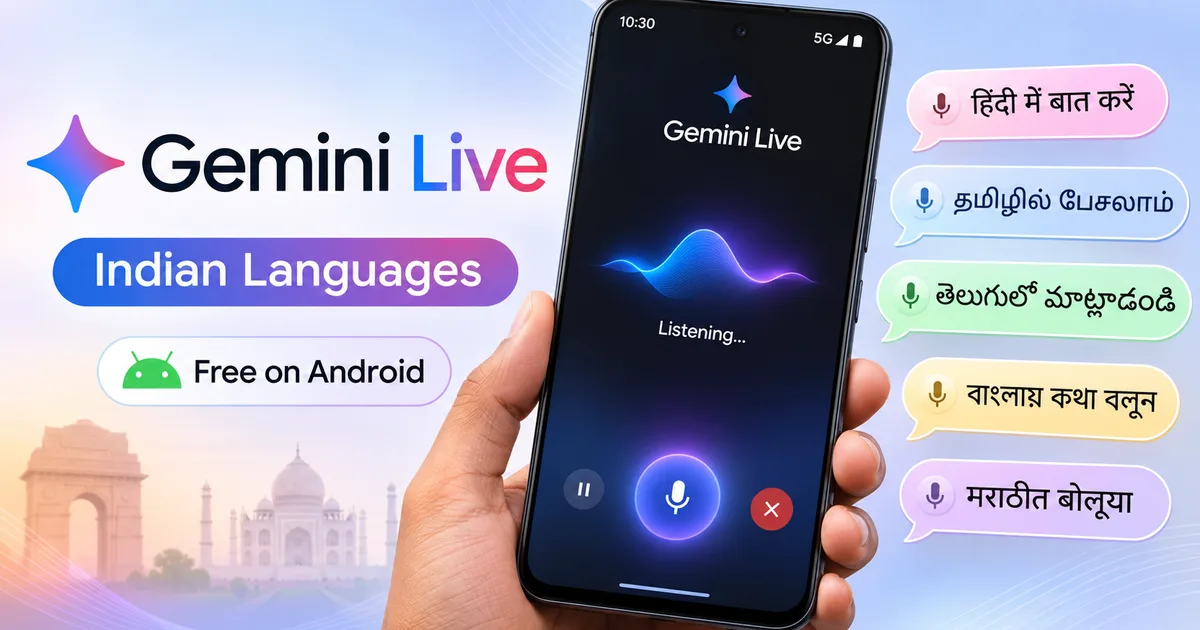
If you've tried using voice assistants on your phone in India over the past few years, you already know the frustration. It's real. You ask something simple in Hindi, and the assistant either fires back in a flat American accent or dumps an unrelated web link right onto your screen. That changes now because Google Gemini Live in Indian languages is finally rolling out for free on Android. You don't need a paid subscription to test it out. And you certainly don't need to speak Queen's English just to get sensible answers.
For months, having an actual conversation with Google's newest voice AI meant paying ₹1,950 every month for Gemini Advanced through Google One AI Premium. That was steep. If you ask me, almost nobody was excited to spend two thousand rupees a month just to talk to a phone. Most college students and small business owners I know laughed off the whole idea. But Google clearly saw the gap. At the recent Google for India event, the company announced that Gemini Live voice chats are going free for Android users across the country, complete with support for nine regional tongues.
I spent the last week talking to it during morning chai and while running errands. It actually talks with you.
The nine Indian languages available right now
Google launched this regional rollout with Hindi first, and then added eight more languages soon after. Right now, the full roster includes:
- Hindi, which has the smoothest pronunciation and quickest response times so far.
- Bengali, with decent recognition for colloquial phrasing in Kolkata and across West Bengal.
- Gujarati, handling business questions and conversational queries without awkward pauses.
- Kannada, supporting everyday Bengaluru and Karnataka regional terms.
- Malayalam, which handles complex sentence structures surprisingly well.
- Marathi, accurate with conversational terms used in Pune and Mumbai.
- Tamil, capturing formal terms and everyday spoken Chennai expressions cleanly.
- Telugu, responsive with clear diction and natural cadence.
- Urdu, carrying polite conversational phrasing and standard vocabulary.
Beside these nine regional tongues, you still have Indian English. And the neat part is that you can switch languages on the fly. In my experience, flipping between English and Hindi mid-chat works surprisingly well. If you want to check other tools supporting multiple regional languages, you can browse our curated AI tools hub for practical comparisons.
You also get ten distinct voice personalities to pick from. Some have deep, calm tones, while others are noticeably brighter and faster. Names like Nova and Ursa sound like space missions, but the audio quality sounds remarkably human (a welcome change, honestly). There's none of that hollow tin-can reverberation that older Google Assistant voices had back in 2020. It's clean.
Why the free Android rollout makes practical sense
Look, India is a voice-first market. That isn't marketing fluff. It's simply how people use their phones here every single day. Step outside any busy metro station or walk into a local kirana shop, and you'll see it right away: people rarely bother typing long paragraphs on a tiny screen. Instead, they fire off thirty-second WhatsApp voice notes because talking is just faster and way more natural.
Typing in regional scripts has always been a pain. Transliteration keyboards like Google Indic or Gboard try hard, but auto-correct frequently butchers regional spelling. It's a mess. So talking sidesteps that entire headache. When you speak to Gemini Live in Hindi or Tamil, you skip typing altogether.
Google has made conversational voice access free on mobile devices in India to ensure users across all language backgrounds can interact directly with modern AI without financial barriers.
Honestly, dropping that ₹1,950 paywall is the smartest move Google made this year. I think it completely changes things (which makes sense, actually, given the competition). Giving the feature away for free on Android 10 or newer puts Gemini directly into the hands of hundreds of millions of users. If you want a deeper look at the initial launch mechanics, check out our guide on voice conversations on Android.
Step-by-step setup on your Android phone
Thing is, setting this up takes less than two minutes. It's dead simple. (I know, it sounds tricky, but it takes thirty seconds once you know where to tap.) If you ask me, you don't need any special beta invite or sketchy sideloaded APK file here. Everything runs through the official Google app ecosystem on your phone.
Follow these steps to turn it on:
- Open the Google Play Store, search for Gemini, and update the app to its latest release.
- Open the Gemini app and tap your circular Google profile icon sitting in the top right corner.
- Tap Settings, then select Languages from the menu list.
- Tap Add a language and pick your preferred Indian language, such as Hindi, Tamil, or Bengali, as your primary or secondary spoken language.
- Return to the main Gemini home screen, where you'll spot a new waveform icon next to the text prompt box. Tap that waveform icon to start your voice session.
What the interface looks like on your display
On this screen, you'll see a clean grey interface with your Google profile icon up in the top right corner. Once you tap that waveform icon at the bottom right, a full-screen voice overlay slides up showing a glowing blue and purple orb with two buttons: Hold and End. When you speak, the glowing orb pulses in sync with your voice volume. And when Gemini answers, the orb ripples with smooth gradients.
If you need to interrupt, you don't have to press any button. Just talk over it. The microphone detects your voice instantly, cuts off the response, and listens to your new point. In my experience, that single detail makes it feel like an actual telephone conversation rather than an intercom exchange. For more walkthroughs like this, visit our practical how-to guides section.
How Gemini Live compares to free ChatGPT voice
Basically, OpenAI also has a voice mode in its free ChatGPT app. Both tools are capable. But when it comes to Indian languages, they don't behave the same way (the numbers here are a bit fuzzy, but ChatGPT's daily caps hit fast). I ran side-by-side tests across five days on real everyday tasks.
| Feature | Google Gemini Live (Free) | ChatGPT Voice (Free Tier) |
|---|---|---|
| Supported Indian Languages | 9 regional languages plus Indian English natively supported | Hindi and English work well, other regional tongues sound mechanical |
| Free Access Limits | No strict daily conversational time caps on Android | Standard voice is unlimited, but Advanced Voice has strict time limits |
| Interruption Handling | Very responsive, stops speaking immediately when you chime in | Fast on advanced voice, slightly sluggish on standard free voice |
| Indian Context Awareness | Understands local terms like Aadhaar, UPI, ration cards, and local train lines | Strong general logic, but occasionally misses hyper-local Indian municipal terms |
| Ecosystem Integration | Connects directly with Google Calendar, Maps, and YouTube | Requires third-party plugins or manual copying of details |
In my experience, Gemini Live is noticeably more grounded in Indian context. When I asked it in Hindi about how to link a bank account to UPI, it explained NPCI rules and debit card verification without mixing up terms. It was spot on. If you want a complete head-to-head breakdown of voice assistants, read our ChatGPT voice comparison test.
Real-world tests and where it still stumbles
I think Gemini Live is genuinely helpful for everyday tasks, but it isn't flawless. Not even close. Being clear about its limits will save you from getting annoyed when it misses a point. I'm not sure exactly why, but the friction usually shows up in crowded spots.
Where it excels:
- Explaining confusing government procedures, such as how to download a digital life certificate via Jeevan Pramaan or how DigiLocker verifies college marks sheets.
- Drafting professional messages in formal Hindi, Marathi, or Tamil for society WhatsApp groups or school teacher correspondence.
- Brainstorming ideas aloud while your hands are busy cooking dinner or fixing something around the house.
- Practicing spoken English or learning regional vocabulary by asking for conversational corrections in real time.
Where it still struggles:
- Heavy background noise confuses the microphone. If you're standing next to honking traffic on an Indian road, the speech recognition frequently drops syllables.
- Excessive code-switching throws it off. If you speak rapid Hinglish with three English words, two Hindi words, and regional Mumbai slang in one breath, it sometimes pauses awkwardly before responding.
- It won't transfer money through PhonePe or Google Pay (which, for the record, I think is actually a good thing for security).
- Pronunciation of specific local town names in tier-three districts can sound stiff or slightly mispronounced.
Practical tips to get cleaner voice replies
To get the best results from Gemini Live on your Android phone, keep your environment in mind. Use wired earphones or wireless earbuds with a microphone if you're in a noisy room. That keeps your voice isolated and stops room echo from getting picked up.
Speak at an even pace. You don't need to speak unnaturally slow like a robot, but rushing through your sentences makes the translation layer work overtime. If you notice the assistant answering in English when you spoke Hindi (annoying, I know), head back into your language preferences and make sure Hindi is set as the primary choice rather than secondary.
Give it a try during your regular routine. If you ask me, having an AI that speaks your mother tongue without demanding a monthly fee is a genuinely useful tool to have in your pocket. Put it on your phone and see how it handles your day.