Honestly, talking to our phones used to be a frustrating experience. You'd bark a command. Then you'd wait for the beep and pray Google Assistant understood your Indian accent. That completely changed recently. If you've been wondering how to get the most out of Google Gemini Live 2026, you're not alone. I spent the last week digging into this update, and it's actually changing how I use my phone.
I don't know about you, but I spent the last five years yelling at my device. Setting a timer while cooking dal was a total gamble. Asking for directions meant repeating the destination three times slowly. So when everyone started talking about this new conversational AI, I was highly skeptical. I figured it was just another gimmick. You know, pushed by a tech giant to sell more phones. Basically, I didn't buy the hype.
But I gave it a shot. And honestly, it changes everything. If you want to stop typing and start actually talking to your phone, you need this. In this guide, I'm going to walk you through exactly how to set up Google Gemini Live 2026 on your Android device, step by step. Without skipping the annoying parts.
What exactly is Gemini Live?
First, we need to clear up what this actually is. Gemini Live isn't just a simple voice assistant that sets alarms. It's a continuous, conversational AI. That means you can talk to it, pause, or even interrupt it halfway through a sentence, and it just keeps up. You don't have to push a button every time you speak. It just works.
It feels like being on a phone call with someone who happens to know the entire internet. The recent September Android Drop made this even better. They added things like the ability for the AI to remember where you put physical objects. You can tell it you left your keys on the fridge, and it remembers. It also integrates into Android much deeper now. You can use it in a floating bubble while browsing other apps. The tech is genuinely impressive, if you ask me. (Which makes sense, actually).
Why this matters for Indian users
For years, voice tech ignored the reality of how we speak in India. We mix English with Hindi or Tamil in the same sentence. We speak fast. We have distinct regional accents. The older systems constantly misunderstood us. With the latest updates, this AI model has real-time speech translation and 70+ language support.
You can finally speak normally. No more doing a fake American accent just to get your phone to turn off the bedroom lights. It handles conversational Hinglish surprisingly well. If you're curious about how this compares to other platforms, you might want to read our WhatsApp Meta AI Voice Mode 2026: Step-by-Step Guide to Enable Voice Conversations to see what the competition is doing.
Before you start: what you need
Look, this won't work on a ten-year-old phone. You need a somewhat recent Android device. Most phones from Samsung, OnePlus, Xiaomi, or Google Pixel bought in the last three years should handle it fine. You also need a solid internet connection. A patchy 4G signal in a basement will make the voice responses lag. That completely ruins the natural feel.
You also need the official app. Don't download some sketchy APK from a WhatsApp forward. Go to the Play Store. And you need to be willing to replace Google Assistant as your primary phone helper. That means when you long-press the power button, the new AI takes over. If you're ready for that, keep reading. If you want more basic phone tips first, check out our other How-to Tech Guides before proceeding.
Step-by-step: how to enable Google Gemini Live 2026
Here's the exact process to get this running on your phone right now.
- Open the Google Play Store on your Android phone and search for the Google Gemini app. Hit install, or tap update if you already have it. You need the absolute newest version to get the voice features working.
- Open the app. The very first screen will ask if you want to switch from Google Assistant to Gemini. Tap the agree button. I know a lot of people hesitate here because they are used to the old Assistant, but you just have to do it. You can switch back later in the settings if you hate it.
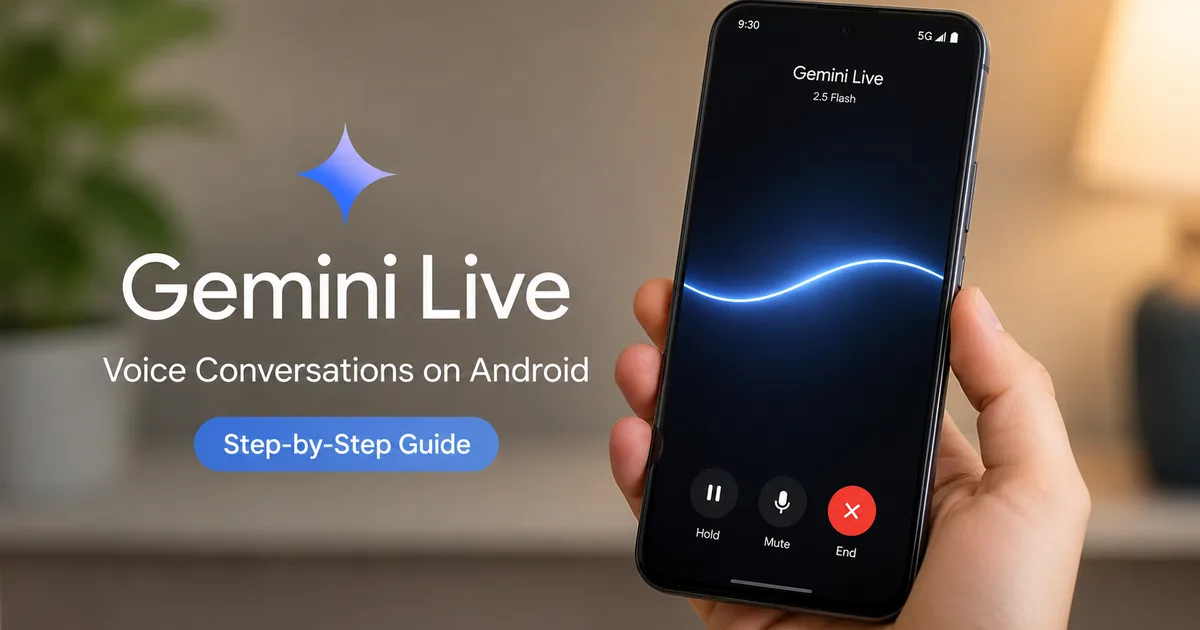
- Once you are on the main chat screen of the app, look at the bottom right corner. You should see a new icon. It looks like a small waveform with a sparkle next to it. That is the Live button. If you don't see it, your account might still be waiting for the rollout. Google is pushing this in phases across India.
- Tap the waveform icon. The interface will slide up and take over the screen. A voice will introduce itself. Now, just talk. Say hi and ask it what it can do.
The first time I tried it, I asked it to help me plan a three-day itinerary for Goa that didn't include the usual crowded beaches. It started listing places. And I interrupted to say no, keep it under a budget of 15000 rupees. It stopped. It adjusted the plan, and kept going. That interruption feature is what makes it feel real.
If you take away one thing from this guide, remember this: do not treat Gemini like a search engine. Treat it like a fast intern. Talk to it in full sentences, interrupt it when it goes off track, and give it specific boundaries for what you want.
Activating Personal Intelligence in India
One of the biggest updates recently is that Google brought Personal Intelligence to India. This is what makes the AI actually useful for your specific life, rather than just pulling facts from Wikipedia. It reads your Gmail and looks at your Google Photos. It even checks your Google Drive.
To turn this on, open the app and tap your profile picture in the top right. Tap on Extensions. You'll see a list of Google services. Turn on the switch for Google Workspace. It'll pop up a warning about data access. You have to decide if you trust Google with this.
I enabled it. Yesterday, I couldn't find my flight ticket to Delhi. I just opened the voice mode and asked what time my flight was tomorrow, and for my PNR. It scanned my email. It found the MakeMyTrip booking and read the details out loud. It saved me five minutes of digging through my inbox. Just know that if you ask it to summarize long documents from your Drive, it might take a few seconds to think.
Using the new features from the September update
If you read the news about the September 2026 Android Drop, you know they added some wild stuff. The Remembered list is my favorite. You can use voice mode to say to remember that my friend Rohan is allergic to peanuts. Two weeks later, you can ask what Rohan is allergic to again, and it tells you. It works great for remembering where you parked your car or what Wi-Fi password your uncle uses.
They also added real-time translation capabilities. The Gemini 3.5 Live Translate has over 70 languages. If you're traveling and need to communicate, you can have the app listen to Hindi and speak back in French instantly. It's much faster than the old Google Translate app. I'm not sure exactly why it's so fast, but it works.
Another massive improvement is the bubble feature. When you start a Live conversation, you don't have to stare at the app. You can swipe to go home, and the interface shrinks down into a small floating bubble on your screen. This means you can keep talking to it while scrolling through Instagram or reading a message. I use this all the time. I'll have it read out a recipe step-by-step while I'm actually looking at my Swiggy Instamart cart to make sure I get the right ingredients. It completely changes how you multitask on an Android phone.
What about older Android phones?
A lot of my friends have asked if this works on phones that are four or five years old. The short answer is yes, but the experience might not be as smooth. Thing is, the heavy lifting for these AI models is done in the cloud, on Google servers. That's why you need a good internet connection. But your phone still has to process the voice input and handle the floating bubble animations.
If you're using a budget phone from 2021, you might notice a delay between when you speak and when the AI responds. The screen might stutter when you switch to other apps while the Live mode is running. It isn't a dealbreaker, but it's noticeable. If you find your phone overheating or draining the battery too fast while using voice mode, go into your battery settings and restrict background usage for the app when you aren't actively using it. You can also turn off the wake word detection. That saves a lot of idle battery drain.
Troubleshooting common issues
It isn't perfect. Sometimes it's a mess. Here are the common problems and how to fix them.
Missing Live button
If the button isn't showing up, this happens a lot. First, force close the app. Go to your phone settings. Find the app under Apps, and hit Force Stop. Reopen it. If that doesn't work, go to the Play Store and make sure you aren't missing an update. Sometimes, you just have to wait a few days for Google to enable it on their servers for your specific account. The numbers here are a bit fuzzy, honestly.
Accent recognition problems
While it's getting better at Indian accents, it still struggles with mixed languages. If you speak in heavy Hinglish, it might get confused. Go into the app settings and check your primary language. In my experience, setting it specifically to English (India) helps a lot.
Incorrect information
Never forget that this is a language model. It will confidently lie to you. If you ask it for legal advice or medical dosages, verify everything. I asked it about a specific bank interest rate for an SBI fixed deposit, and it gave me numbers from three years ago. Also, if you're downloading a bunch of new apps to try out these features, be careful. Check out our Android Pulse App 2026: Step-by-Step Guide to Download, Setup and Features Explained for safe ways to manage your Android device.
The verdict
Should you enable it? Yes. It costs nothing. And it makes your phone smarter. The days of robotic commands are over. We're finally at a point where talking to a computer feels normal. Try using it while driving, or while your hands are full in the kitchen. Once you get used to the ability to interrupt it and change the topic mid-sentence, you won't want to go back to typing every single query. Just remember to check your privacy settings and understand what data you are sharing. But for day-to-day tasks, it's highly practical.