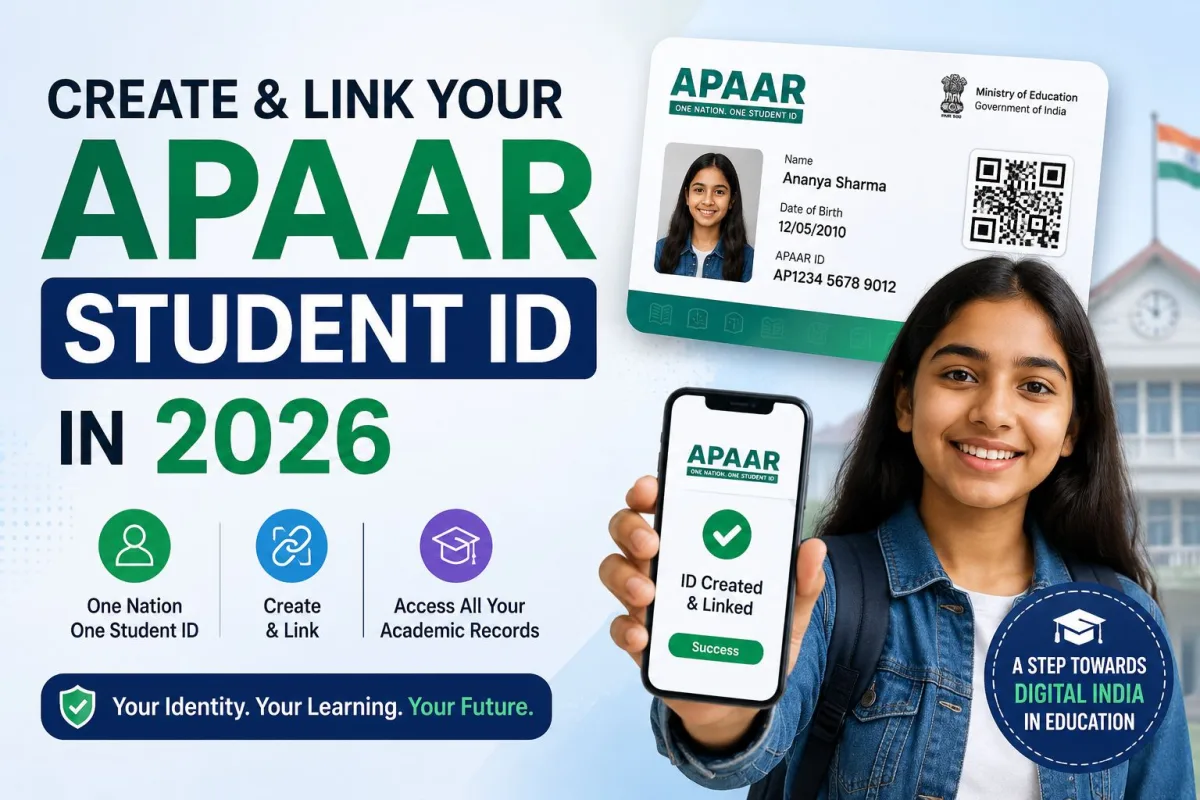
If you are registering for college entrance exams or checking board results this year, you have probably hit a wall asking for a specific 12-digit number. Learning how to create and link your APAAR (One Nation One Student ID) in 2026 is an unavoidable reality for Indian students and their parents. The government has aggressively integrated this system into almost every major academic portal over the last few months.
I have seen parents panic over this extra step during the MHT CET and JEE Main registrations. The portal throws an error, the deadline is approaching, and suddenly you need to navigate a new government system. The good news is that generating this ID takes about ten minutes if you have your basic documents sorted. This guide will walk you through exactly what buttons to click, what you will see on your screen, and how to fix the common errors that pop up along the way.
Understanding the automated permanent academic account registry
APAAR stands for Automated Permanent Academic Account Registry. You can think of it as an educational Aadhaar card. Instead of keeping physical files of your mark sheets, migration certificates, and degrees, this 12-digit number links to a digital locker containing your entire academic history.
The system is built on top of the Academic Bank of Credits. When a student completes a course, passes a board exam, or finishes a university semester, the institution pushes those academic credits directly to the student's ID. You no longer have to run around college administration offices begging for physical transcripts when applying for higher education. The new institution simply pulls your verified academic record using your APAAR number.
Why exams require an APAAR ID this year
The push for this system reached a tipping point in early 2026. If you follow our latest tech explainers, you know the government has been phasing out physical document verification to reduce fraud and administrative delays.
The Maharashtra State CET Cell issued strict guidelines making the APAAR ID mandatory for MHT CET 2026 registrations. Similarly, the National Testing Agency integrated the requirement into the application forms for JEE Main and NEET. Even checking the CBSE Class 10th results now heavily relies on the DigiLocker ecosystem where the student ID lives.
The days of uploading scanned copies of your 10th and 12th mark sheets are ending. Exam authorities now use your APAAR number to instantly verify your academic eligibility directly from the government database.
What you need before starting the registration
Do not start filling out your exam application until you have generated this ID. You will need three things ready before you begin the process. If you ignore this prep work, the portal will time out and you will have to start over.
- Your Aadhaar card number.
- The mobile phone currently linked to your Aadhaar card. You must have this physical phone next to you to receive the OTP.
- An active DigiLocker account. If you do not have one, the process below covers account creation.
The biggest hurdle people face is a disconnected Aadhaar mobile number. If the number linked to your Aadhaar is an old SIM card you threw away three years ago, you cannot generate an APAAR ID. You must visit a local Aadhaar Seva Kendra to update your phone number first, which takes about 48 hours to reflect in the system.
Step by step process to create your APAAR ID via DigiLocker
The government routes the entire creation process through the DigiLocker platform. You can do this on a computer browser or using the mobile app. The steps below use the mobile app experience since that is what most students use.
- Download the official DigiLocker app from the Google Play Store or Apple App Store. Open the app and tap the language preference, then hit continue.
- Tap the "Get Started" button at the bottom of the screen. If you already have an account, tap "Sign In" and enter your mobile number. If you are new, tap "Create Account" and fill in your full name exactly as it appears on your Aadhaar, along with your date of birth and mobile number.
- Once logged in, look at the bottom navigation bar and tap the "Search" icon (it looks like a magnifying glass).
- In the search bar at the top, type "APAAR" or "Academic Bank of Credits". Tap the option that says "APAAR ID Card - Ministry of Education".
- A consent screen will appear. The app will ask for permission to share your Aadhaar details (name, date of birth, and gender) with the Academic Bank of Credits. Tap the "I Agree" checkbox and hit the "Submit" button.
- The next screen asks for your current educational details. You will see dropdown menus. Select your admission year, identity type (you can choose roll number, registration number, or enrollment number), and the specific value for that identity.
- Select your institution name from the final dropdown list. Type slowly, as the list contains thousands of schools and colleges across India.
- Tap "Get Document". The screen will load for a few seconds. You will be redirected to the "Issued Documents" tab.
- Tap on the newly generated APAAR ID card. You will see your photo (pulled from Aadhaar), your name, a QR code, and the 12-digit number. Write this number down.
How to link your APAAR ID during exam registrations
Creating the ID is only the first half of the job. You now have to link it to your specific exam application. The process is similar across most portals like NTA (for JEE/NEET) or state CET websites.
When you start a new exam registration, the first page usually asks for your identity verification method. Select the option that says "I have an APAAR ID / ABC ID and wish to create my login using this". Enter your 12-digit number in the text box. The website will redirect you to a DigiLocker login page.
Enter your DigiLocker mobile number and the 6-digit security PIN. You will receive an OTP. Enter the OTP and click "Allow" when the screen asks for permission to share your data with the exam authority. The website will pull your verified name, date of birth, and parents' names directly into the application form. You cannot edit these fields manually. This is a security feature to prevent students from applying under multiple fake profiles.
Fixing common account generation problems
The system is generally stable but you might run into specific roadblocks. Here is how to bypass the most common issues students face.
Name mismatch errors
If your name on your school records is "Rahul Kumar Sharma" but your Aadhaar card just says "Rahul Sharma", the DigiLocker system might throw an error when generating the ID. The system prioritizes the Aadhaar database. You will need to use your exact Aadhaar name for the APAAR generation. Later, you may need to submit an affidavit to your school or exam board explaining the name discrepancy. Check our guides section for detailed instructions on updating Aadhaar demographic details.
Institution missing from the dropdown
When selecting your school or college in step 7, you might not find your institution in the list. This happens with smaller, newly established schools or certain state-board affiliated rural schools that have not onboarded to the Academic Bank of Credits yet. If this happens, look for an option labeled "None of the above" or "Other" in the identity type dropdown. If the portal strictly blocks you, you must contact your school administration. They have a dedicated institutional portal where they can manually generate the ID for you.
DigiLocker OTP delays
During peak registration days (like the day before the UGC NET or NEET deadline), the UIDAI servers handle millions of OTP requests. If you do not receive the OTP within two minutes, do not spam the resend button. The system will temporarily block your number for 24 hours. Close the browser, wait fifteen minutes, and try again during off-peak hours like early morning or late at night.
Getting this setup out of the way early saves a massive amount of stress during exam season. Generate the 12-digit number today, save it in a secure password manager, and keep a printed copy of the digital card in your physical document folder.