I spent three hours last weekend trying to help my uncle reset his Wi-Fi password. He had the new Jio AX6000 Wi-Fi 6 router, which is incredibly fast for its budget price, but he had absolutely no idea how to manage it. We eventually figured out that the JioHome app 2026 update changed where all the settings live. If you're reading this, you're probably in exactly the same situation.
The Jio ecosystem is massive right now. They just announced new all-in-one home plans starting at Rs 400. These bring broadband and live television together in one bill. They also rolled out JioTV OS and new interactive features for JioTV+. So your phone is basically the remote control for your entire house. You just need to know which buttons to press.
I wrote this guide because the official manuals are confusing. We'll walk through the exact steps to get this app working on your phone. And we'll get your devices connected and kick off anyone using your Wi-Fi without permission.
What exactly does this app do?
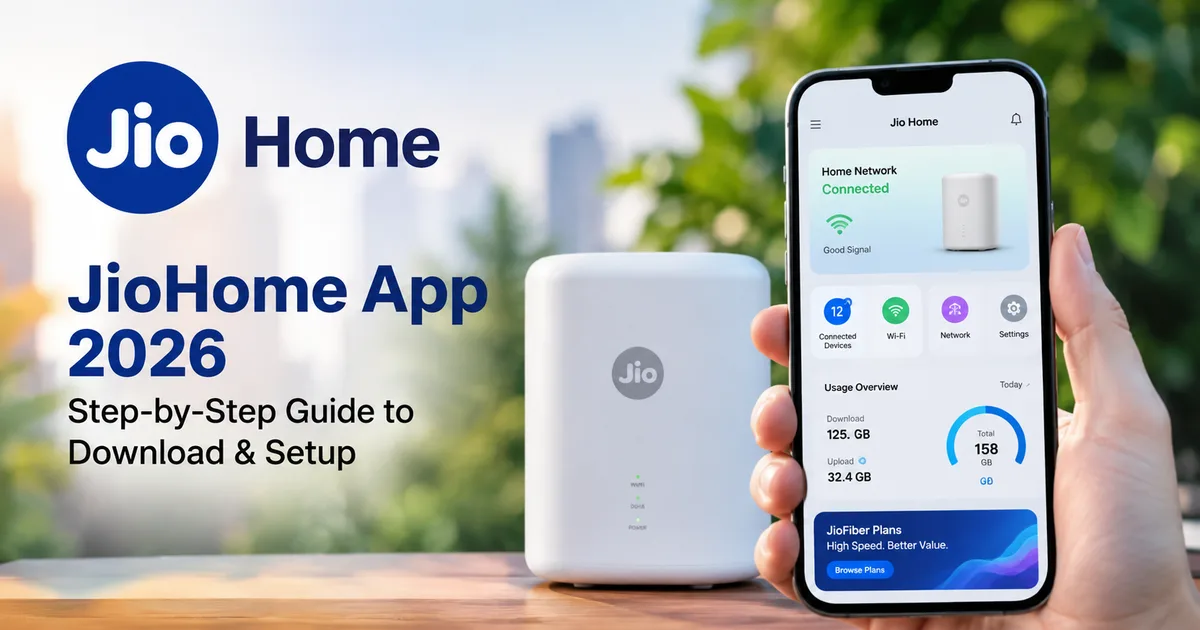
Before we tap any buttons, you need to know what you're installing. The JioHome app is the command center for your Jio broadband and smart devices. (Which is super handy, actually).
Ten years ago, changing your Wi-Fi password meant typing numbers like 192.168.1.1 into a browser. You'd look at a screen that felt like a bad hacker movie. Now you just open this app.
You can use it to restart your router. And you can check if your connection is down or if your phone is just acting up. I think casting photos from your phone straight to your Jio Set-Top Box is the best part. With the 2026 updates, it integrates directly with the new JioTV OS.
Honestly, it makes managing a home network a lot less of a mess.
Step 1: Download the JioHome app safely
Start here because the internet is full of fake apps. I can't stress this enough. Don't download random APK files from sketchy websites.
In my experience, scammers create fake versions of popular utility apps all the time. They put them on third-party sites and wait for you to install them. Then they steal your bank details or UPI pins. You can read more about how these work in our latest scam warnings. Just stick to the official stores.
- Open the Google Play Store if you use an Android phone. If you have an iPhone, open the Apple App Store.
- Tap the search bar at the top of the screen.
- Type "JioHome" and hit search.
- Look for the app published by "Jio Platforms Limited". The icon is a blue house with the Jio logo.
- Tap the "Install" or "Get" button.
- Wait for the download to finish. It is around 40MB, so it should only take a few seconds on a 5G connection.
If you see an app asking for money, you're looking at a scam. The official app is free.
Step 2: Log in with your Jio number
Once the app is installed, open it. The first screen asks for a mobile number.
This detail trips up a lot of people, if you ask me. You have to use the mobile number registered with your JioFiber or JioAirFiber account. Let's say you ordered the connection under your dad's name using his Aadhaar card. If you gave his phone number, you need his number to log in for the first time. The billing profile uses the exact details pulled during the eKYC process.
- Enter the 10-digit registered mobile number in the blank field.
- Tap the "Generate OTP" button at the bottom.
- Check your messages. You will receive a 6-digit code.
- Type that code into the app.
- If the app asks for permissions like "Location" or "Local Network", tap "Allow". It needs these to find your router.
Always remember: Jio customer care will never call you and ask for the 6-digit OTP to verify your router setup. If someone asks for this over the phone, hang up immediately. It is a scam.
If you don't get the OTP, wait 60 seconds. Then tap the resend button. Sometimes the mobile network is just slow.
Step 3: Complete your Jio router setup
Now you're in the app. The home screen will probably look empty. We need to tell the app which router belongs to you.
If your phone is currently connected to your home Jio Wi-Fi, the app usually links it automatically. It spots the router and attaches it to your account. But if it fails, you have to do it manually. I'm not sure exactly why it fails sometimes.
- Look at the bottom menu bar in the app. Tap the icon labeled "My Network".
- If your router is not showing up, look for a "+" button or an option that says "Add Node".
- The app asks you to scan a QR code. Walk over to your physical router.
- Look at the sticker on the back or bottom of the router. You will see a QR code next to the serial number.
- Point your phone camera at that code.
The app takes a few seconds to process. Once it works, you'll see your router's name pop up. It usually looks like "JioFiber-XXXX".
Step 4: Change your Wi-Fi name and password
This is the biggest reason people get the app. The default password on the back of the router is a nightmare to remember. It's just a long string of random letters and numbers.
You probably want to change it. Something easier for your family makes sense.
- Go back to the "My Network" tab at the bottom of the screen.
- Tap on the picture of your router.
- Look for a section called "Wi-Fi Settings" or "WLAN Settings".
- You will see two different networks listed: 2.4GHz and 5GHz.
- Tap the edit icon next to the 5GHz network first. This is the fast one you want most of your modern phones connected to.
- Delete the old Wi-Fi name and type a new one. Maybe something like "Sharma_House_5G".
- Delete the old password and type a new one. Make it strong but memorable. Include a number and a symbol.
- Tap "Save".
Your router will restart. This takes around two minutes. Every phone and smart TV in your house will disconnect from the internet. (Annoying, I know). You'll have to go to the Wi-Fi settings on all those devices and put in the new password.
I definitely recommend changing the 2.4GHz network password to match. Some older smart bulbs and security cameras only work on the 2.4GHz band. Keeping the passwords the same saves you a huge headache later.
Step 5: Add your Jio smart home devices
The 2026 version of the app really pushes the smart home stuff. If you bought the new all-in-one plan for Rs 400, you probably have the Jio Set-Top Box.
You can use the JioHome app as a remote for the Set-Top Box. In my experience, it's an absolute lifesaver when you lose the physical remote in the couch cushions.
- Make sure your phone and the Set-Top Box are connected to the same Wi-Fi network.
- Open the JioHome app and tap the "Smart Home" tab.
- Tap "Add Device".
- Select "Set-Top Box" from the list of options.
- The app will scan your network. Your TV box should appear on the screen.
- Tap it to connect.
Now your phone screen has digital buttons for volume and changing channels. It even has a keyboard feature. Typing the name of a movie into the YouTube app on your TV is way faster on your phone keyboard. Way better than using the annoying TV remote.
You can also use this tab to connect Jio smart plugs or cameras. The process is identical. Tap add, pick the device, and wait for the scan.
Setting up parental controls on your Jio Wi-Fi
This is my favorite feature. If your internet is running slow, someone might be stealing your Wi-Fi. Or maybe your kids are watching YouTube at 2 AM on a school night.
The app gives you total control over who gets access.
- Open the "My Network" tab.
- Tap on "Connected Devices".
- You will see a list of every phone and TV currently using your internet.
- Scroll through the list. If you see a device you do not recognize, tap on it.
- Hit the "Block" button. That device is immediately kicked off the network and cannot reconnect even if they know the password.
For parental controls, you can set schedules. Just tap on your kid's tablet in the list. Look for the "Schedule Access" option. You can set the internet to turn off for that specific device between 10 PM and 6 AM. The rest of the house keeps their connection, but the tablet gets nothing. (I know, it sounds complicated, but it's not. The app makes it just two taps).
Using the MyMedia casting feature
Not many people use this, but I think it's actually great. JioHome has a feature called MyMedia. It lets you take photos and videos stored on your phone and throw them onto your TV screen.
If you have family over and want to show them photos from a recent trip, you don't need to pass your phone around. You don't need a fancy Google Chromecast either.
- Tap the "MyMedia" tab in the app.
- Give the app permission to access your photos and files.
- You will see your photo gallery inside the Jio app.
- Tap a photo.
- Look for the cast icon at the top of the screen.
- Select your Jio Set-Top Box.
The photo instantly appears on your TV. You can swipe left and right on your phone, and the TV will follow along. It handles video surprisingly well without lag.
Activating special offers and recharge plans
Jio pushes special offers to its home users a lot. Just recently, they announced a massive JioHome cricket offer in India. It includes bundled OTT apps and specific cashback benefits. If you ask me, the easiest way to get these offers is right in the app. Much better than visiting a physical store.
Many people ignore the banners on the home screen of the app. They assume they're just ads. But that's exactly where the account-specific deals live.
- Open the app and stay on the main dashboard.
- Scroll down past your network status.
- Look for a section titled "Offers for you" or a large promotional banner.
- If you are eligible for the cricket bundle or a cashback offer on your broadband recharge, it will be listed here.
- Tap the banner. The app will detail exactly what you get.
- Read the terms. Usually, these bundles require you to recharge for 3 or 6 months at once to get the free OTT subscriptions.
- Proceed to payment. The app supports UPI, so you can pay directly through PhonePe or Google Pay.
Using UPI directly in the app is highly secure. Just make sure you're actually inside the official app. Fake payment links are a massive problem right now. If you get a random SMS asking you to click a link to claim a Jio offer, ignore it. Always open the app yourself to check.
Troubleshooting: When things break
Tech is never perfect. Sometimes the app just refuses to work. Before you spend forty minutes on hold with customer care, try these quick fixes.
The app says it cannot find the router
First, check your phone's Wi-Fi. Are you accidentally connected to your neighbor's network? Or did you leave mobile data on? Turn off mobile data and ensure you are connected to the Jio network. Second, check the lights on the physical router. If the internet light is blinking red, the fiber cable might be loose or broken. And the app can't fix a broken wire.
The app keeps crashing
This happens on older Android phones sometimes. Force close the app. Go to your phone settings, find the "Apps" menu, select JioHome, and tap "Clear Cache". Reopen the app. That usually solves it.
I changed the Wi-Fi password and now nothing works
You have to update the password on every single device. Your smart TV and your laptop are probably trying to use the old password and failing. Go to each device, forget the network, and log in again with the new password.
My Jio Set-Top box is not connecting
Sometimes the Set-Top Box drops its connection to the router. Pull the power cable out of the Set-Top box, wait ten seconds, and plug it back in. Wait for the green light to turn steady. Then try adding it to the JioHome app again. In my experience, rebooting fixes almost every problem with these boxes.
Managing the new JioTV OS updates
With the 2026 rollout of JioTV OS, the app is a bridge. The recent Reliance AGM announcements discussed how the OS integrates with the JioHome app for interactive features. If you are watching a cricket match on JioTV+ through your Set-Top Box, the app can show real-time stats right on your phone screen.
You can also use the app to browse the OTT bundles included in your Rs 400 plan. You don't need to jump between Netflix and JioCinema on your TV. You can search for a movie in the JioHome app. You tap it, and it automatically launches the right app on your TV.
I think it takes a few days to get used to having all these controls on your phone. But once you set it up, you won't want to go back to logging into a browser to restart your router.
If you want to learn more about setting up digital services, check out our explainer hub or read up on our recommended tech tools for your home office. Keep your apps updated and never share your OTPs with anyone claiming to be from customer support.