I have a confession to make. For the last three years, the very first thing I do when I set up a new Samsung phone is dig into the camera settings and turn off Motion Photos. They take up way too much storage space. And honestly, they're usually just a blurry second of me lowering my phone after taking a picture.
But that's changing with the One UI 9 update. Samsung has finally given us a reason to keep this feature turned on. Setting up a Samsung Motion Photo Animated Wallpaper 2026 style is probably one of the most fun customization features they've added in a while.
If you've got a recent Galaxy device running the new One UI 9 software, you can now take those brief video clips attached to your photos and turn them directly into live, animated wallpapers for your lock screen and home screen (which makes sense, actually). It sounds like a small tweak. Thing is, it actually breathes a lot of life into a feature most people just ignore. I think it makes the phone feel way more personal.
What exactly is this new wallpaper feature?
Let's get some context first. When you snap a picture with Motion Photo enabled, your phone records a tiny bit of video right before and after you hit the shutter button. Apple calls them Live Photos. Google calls them Top Shots. Samsung has had them for years.
Until now, they lived entirely in your gallery app. You could view them or pull a still frame out of them. And that was about it. If you wanted a moving wallpaper, you had to manually convert a video clip and crop it. It was a total mess.
Now, One UI 9 cuts out all the extra steps. You can take a picture of your dog running in the park or just the rain falling on your balcony in Mumbai. Then you just slap it straight onto your lock screen as a looping animation.
How it actually works in practice
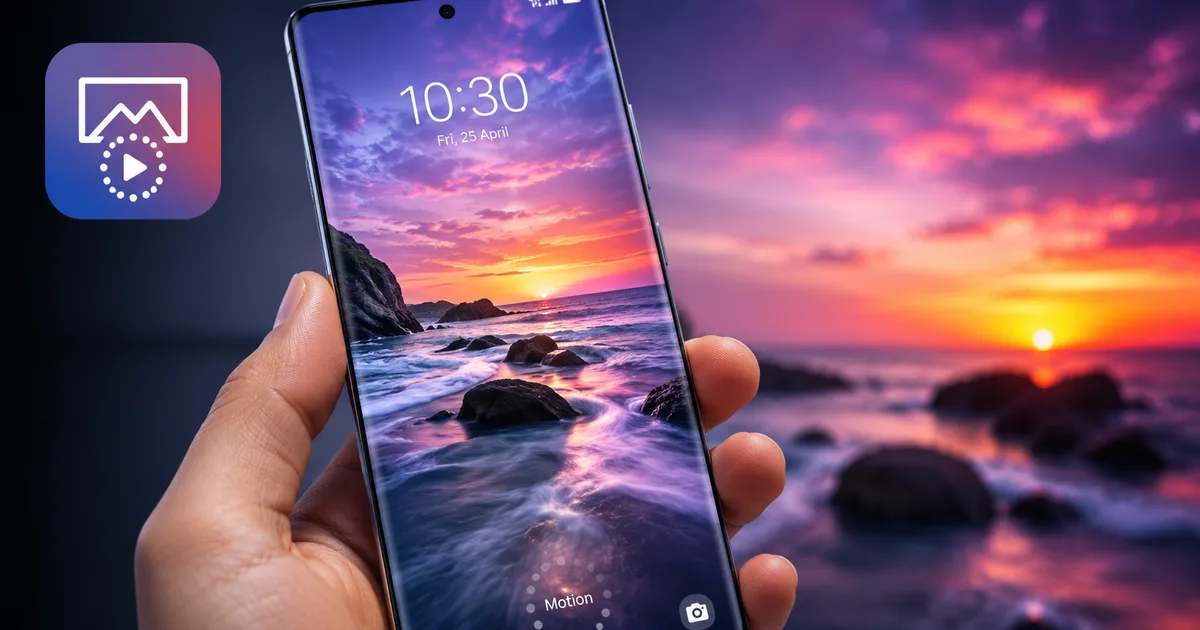
I tried this out earlier today on a Galaxy S24. The implementation is surprisingly smooth. When you set a motion photo as your wallpaper, it doesn't just play a jarring video loop. The system adds a subtle fading effect at the end of the clip. So it loops continuously without a harsh cut.
And if you're using it on the lock screen, the animation plays when you wake the phone up. Then it settles into the high-quality still frame when the screen stays on. It looks polished. In my experience, Samsung usually takes a few tries to get this stuff right.
Step-by-step guide to enable motion photo wallpapers
Getting this set up takes about thirty seconds once you know where to look. You don't need any third-party apps for the basic version.
Here is how you do it:
- Open your camera app and make sure the Motion Photo icon is turned on and glows yellow.
- Take a photo of something moving. Water, traffic, pets, whatever you want.
- Open the Samsung Gallery app and find that photo.
- Tap the three dots in the bottom right corner to open the menu.
- Select "Set as wallpaper".
- Choose whether you want it on your Lock screen, Home screen, or both.
- The preview screen will load. You'll see a new "Motion" button near the bottom. Tap it.
- Hit "Done" in the top right corner.
That's it. You can lock your phone and test it out.
If you don't see the Motion button on the wallpaper preview screen, double-check that you're actually looking at a motion photo. Also make sure your phone has updated to One UI 9. The update is still rolling out across India right now.
Which Samsung Galaxy phones support motion wallpapers?
This is where things get slightly complicated. Samsung makes a lot of phones. And they don't all get the same features at the same time.
Obviously, the premium tier is covered. If you dropped ₹1,29,999 on a Galaxy S24 Ultra, or you're holding onto an older S23 or S22 series phone, you'll get this feature as soon as the One UI 9 update hits your device. The Galaxy Z Fold and Z Flip series from the last three years are also safe bets. The numbers here are a bit fuzzy, but most flagships are good to go.
But what about the phones most Indians actually buy?
The Galaxy A series is Samsung's bread and butter here. Popular models like the Galaxy A55 and A35 are getting the motion wallpaper support. Even last year's A54 is on the list.
But if you're using a budget device from the M series or F series, the support is hit or miss. These phones are designed specifically for aggressive pricing on Flipkart and Amazon India. Some of them can't even capture motion photos in the first place because of processor limitations. If your phone can't take them, it obviously can't set them as wallpapers.
So keep an eye on the official software update logs in your phone settings. That's the best way to see if your specific model makes the cut.
For more details on device compatibility, you can check our guides section where we track One UI rollout schedules.
How this differs from older video wallpapers
If you have been using Samsung phones for a while, you might be confused right now. Didn't Galaxy phones already support video wallpapers?
Yes, they did. But it was a completely different process. Previously, you had to record a full video and trim it down to 15 seconds or less in the gallery. It only worked on the lock screen, not the home screen. And honestly, it usually looked terrible. A compressed MP4 video playing on a loop rarely matches the quality of a high-resolution photo.
Motion photos are different. A motion photo is fundamentally a high-resolution still image with a short burst of lower-resolution video attached to it. When you set a motion photo as a wallpaper in One UI 9, the phone is smart enough to handle both formats.
When you first unlock the phone, the animation plays. Instead of freezing on a low-quality video frame, it seamlessly transitions into the high-resolution still image. That means your icons and widgets sit on top of a sharp photo rather than a muddy video still.
It's a subtle technical difference. But it completely changes how the wallpaper looks in everyday use. If you ask me, it feels much cleaner and feels intentional rather than like a hacked-together workaround.
The Wonderland app update makes it better
If you want to take things a bit further, you need to know about Wonderland. This is a module inside Samsung's Good Lock app, which you can download from the Galaxy Store.
Good Lock is basically a sandbox for power users to completely change how their phone works. The Wonderland module recently got a major update focused on 3D effects and motion wallpapers.
Instead of just playing a flat video loop, Wonderland lets you add layers and particle effects. You can take a standard motion photo and add falling snow or rain effects over it. You can also adjust the speed of the animation. Or you can make the wallpaper shift slightly when you tilt your phone using the gyroscope (annoying to set up, I know, but worth it).
Honestly, the tilt effect is pretty cool. It gives a 3D parallax feel to a regular 2D photo.
Just be aware that Wonderland is an extra download. It can be a bit overwhelming to navigate at first. But if you have some free time on a Sunday afternoon, it's worth playing around with.
The downsides of motion wallpapers
Look, there is no free lunch in tech. Turning on motion photos and using them as live wallpapers comes with two specific costs: storage space and battery life.
Let's talk about storage first.
A standard 12-megapixel photo from a Galaxy phone takes up maybe 3MB or 4MB of space. A motion photo captures video alongside that image. Suddenly, that single file jumps to 10MB or 15MB. I'm not sure exactly why it inflates that much, but it does.
If you're using a base model Galaxy phone with 128GB of storage, those files are going to eat up your space incredibly fast. Before you know it, you'll be getting that annoying storage warning. Then you'll be deciding which WhatsApp forwards to delete.
Then there's the battery drain.
Indian summers are brutal on smartphone batteries. When it's 42 degrees outside in Delhi, your phone is already working overtime to keep the screen bright and the processor cool. Adding a live, looping video to your lock screen means the processor has to work just a little bit harder every single time you check a notification.
Is it going to drain your battery from 100% to zero in two hours? No. But you might notice your phone dropping to 15% around 6 PM instead of 8 PM. If you rely on your phone for UPI payments and Ola rides at the end of the day, that difference matters.
My advice? Use the motion wallpaper for a picture you really love, like a partner or a pet. Don't leave the motion photo camera setting on by default for every single random shot you take of a document or a parking spot.
The problem with third-party wallpaper apps
Before this official update, if an Android user in India wanted a live wallpaper, they usually hit the Google Play Store and searched for free live wallpaper apps. I've done it. You've probably done it.
The problem is that a massive chunk of those third-party wallpaper apps are sketchy. Best case scenario, they drain your battery and plaster full-screen ads on your phone every time you unlock it. Worst case scenario, they're straight-up malware.
We see this constantly. People download a sketchy APK for a 3D matrix wallpaper. Suddenly their phone is running hot and their data is being siphoned off. Sometimes these apps even try to scrape OTPs to compromise your bank accounts or UPI apps like PhonePe and GPay.
If you've accidentally downloaded something suspicious and noticed strange bank activity, report it immediately to the national cybercrime portal at cybercrime.gov.in or call the 1930 helpline. You can also read our deep dive on recent mobile threats in the scam alerts section.
That is why having this built directly into One UI 9 is such a big deal. You get the fun, animated backgrounds without giving camera and storage permissions to a random developer halfway across the world.
What makes a good motion wallpaper?
Not every motion photo is going to look good as your home screen background. I spent a good hour testing different types of shots. Some definitely work better than others.
First, avoid shaky hands. If you took the photo while walking down a busy street in Bangalore and the camera was bouncing everywhere, the resulting wallpaper is going to make you feel seasick. You want the camera to be as still as possible while the subject moves.
Second, think about where your app icons sit. If you have a busy, high-contrast video of a crowded market playing behind your apps, you won't be able to read the text underneath them. The best wallpapers have a bit of negative space. Maybe a clear blue sky or a solid dark background so your icons still pop.
Water works incredibly well. A shot of rain hitting a window or waves crashing on a beach looks great. The looping effect handles water naturally because the movement is continuous and unpredictable.
Why this matters in the broader Android ecosystem
You might be thinking this is a small cosmetic change. But it says a lot about how Samsung is trying to build out its software ecosystem.
For years, Android phones have struggled with the perception that their features feel disjointed. Apple's iOS does a great job of making everything feel connected. Taking a Live Photo and immediately using it as a lock screen has been a seamless process on iPhones for a long time.
Samsung is finally catching up on the polish. One UI 9 feels less like a collection of random tech specs and more like a cohesive operating system. Tying the camera directly to the customization engine without forcing users to jump through third-party apps is good design.
It also makes your phone feel significantly more personal. We spend hours staring at these screens every day. Having a lock screen that actually moves and responds to you makes the device feel a bit less cold and mechanical.
If you want to read more about how phone software is changing, we have some great articles in our explainers hub.
Final thoughts on One UI 9 customization
Samsung's new software update brings a lot of heavy features, especially around AI and photo editing. But sometimes it's the small, fun additions that actually get used the most.
The motion photo wallpaper feature is easy to use and doesn't require any technical knowledge. It gives you a result you can instantly show off to a friend. Just keep an eye on your battery percentage if you're out all day without a charger.
I'm going to leave mine turned on for now. Or at least until my storage fills up.