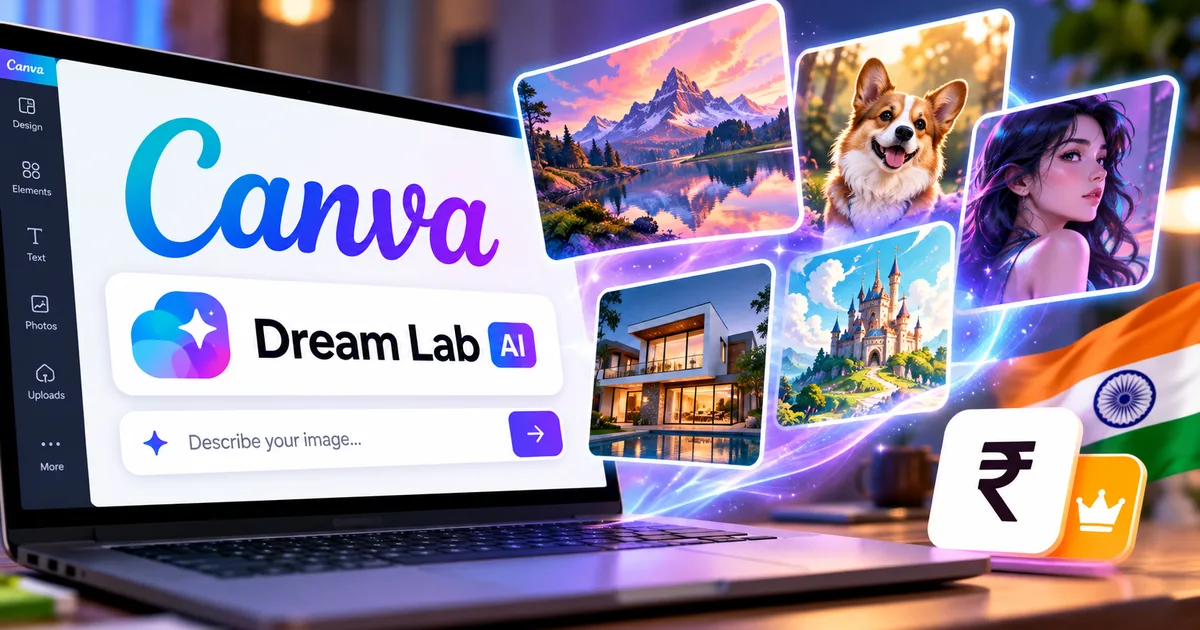
If you've opened Canva recently to put together an Instagram post or a festival banner, you probably spotted a fresh workspace tab. That's Canva Dream Lab AI, and it's the biggest upgrade the design platform has delivered since acquiring Sydney-based startup Leonardo.Ai. Canva had text-to-image tools earlier through Magic Media, but to be blunt, they were mostly hit-or-miss. You'd type a prompt for a traditional chai stall in Jaipur, and you'd get distorted hands or weird melted faces. Dream Lab changes that setup because it runs on the Leonardo Phoenix model.
It's built directly into Canva Visual Suite. No Discord servers to join. You don't have to learn any confusing command syntax either. Basically, you get a prompt box and fifteen visual styles sitting right on your regular design canvas.
I spent the past week testing Dream Lab on dozens of prompts. Everything from quick social graphics to elaborate Indian wedding card backgrounds. If you ask me, some results genuinely surprised me with clean lighting and realistic skin tones. Others fell flat. They ran straight into familiar AI image glitches (which makes sense, actually, given how early this tech still is). If you're wondering whether the tool is worth paying for or if you can just get by on the free tier, here's how it all plays out.
What makes Canva Dream Lab different from older Magic Media tools
Canva never really hid its goal to take over workplace design.
Earlier on, Canva relied on outside tools like Stable Diffusion and DALL-E tucked inside its Magic Media panel. For simple stock shots of coffee cups, they were fine. But in my experience, the second you asked for specific lighting or two people interacting, the results were a mess. You'd end up spending twenty minutes manually masking out deformed fingers or weird background smudges (annoying, I know). It was exhausting.
Dream Lab runs on Leonardo's Phoenix model, which Canva bought back in mid-2024. You notice the difference immediately. When you ask for a subject, the model keeps spatial proportions in check. It actually understands how light bounces off silk sarees and how shadows fall on concrete pavements. And instead of spitting out one random picture that ignores half your prompt, Dream Lab generates four variations side by side at 4K resolution.
Look, you don't even have to leave your editing tab. Once you spot a generation you like, one click drops it directly onto your presentation slide or flyer. That direct workflow saves hours if you manage a brand page or build marketing graphics for clients across our AI tools and software directory.
How the Leonardo AI Phoenix integration actually works
Under the hood, Leonardo.Ai built Phoenix for designers who need tight control over style and layout. Most popular image models are trained broadly on scraped web data, so they tend to push everything toward glossy digital art. Phoenix is different. It sticks much closer to what you actually type. I think that focus on prompt accuracy is why the compositions feel so much more deliberate.
"Bringing Leonardo's Phoenix model into Canva gives our 200 million monthly active users direct access to studio-grade generative tools right on their canvas without jumping between different apps."
Inside Dream Lab, you get fifteen predefined artistic presets to play with. These include:
- 3D cartoon, anime, and comic illustration styles
- Cinematic photo and documentary portrait modes
- Watercolor, ink sketch, and oil painting effects
- Architectural renders and product visualization mockups
You can also upload a reference photo to steer the structure. If you've got a specific product layout or an existing brand color palette, the model uses that image as a rough guide while applying your prompt. It doesn't just copy the image; it borrows the composition.
And here's a small practical touch I really appreciate: you can set the aspect ratio before you hit generate. You can choose square (1:1) for Instagram feeds or vertical (9:16) for Reels. If you need widescreen (16:9) for YouTube thumbnails or pitch decks, that's right there too. No annoying post-generation cropping needed.
Hands-on test: how it handles Indian prompts and design work
Honestly, Indian subjects are usually where AI image generators fall flat. They either turn everything into a tourist brochure cliché packed with random marigold garlands, or they mess up local clothing completely. I ran a few targeted prompts to see how Dream Lab handles real commercial design work here.
First test: "A small grocery store owner in Pune checking his account register on a wooden desk, soft morning sunlight, documentary photography style."
The result was surprisingly grounded. Lighting felt authentic. The shop shelves had realistic grain jars instead of bizarre alien bottles, and the skin textures looked convincing. Best of all, the fingers were clean. I'm not sure exactly why older models struggled so hard with basic hands, but on earlier Canva tools, clean fingers were an impossible ask.
Screenshot description: The Dream Lab workspace shows a text prompt entered in the left sidebar, with four generated horizontal photo variations of an Indian shopkeeper displayed across the central preview pane, alongside resolution and style toggles.
Second test: "Minimalist Diwali greeting poster with brass diya on dark terracotta background, modern typography space in the center, vector illustration style."
Dream Lab nailed the terracotta texture and the diya flame glow right away. But it still can't write. Like most image models today, typography inside the artwork comes out as garbled nonsense if you type something like "Happy Diwali". Thing is, because you're already working inside Canva, that drawback barely matters. You generate a clean background, drop it into your file, and type your actual Hindi or Marathi text using Canva's regular font library.
Screenshot description: The Canva editor interface displays a generated diya graphic placed on an Instagram post canvas, with editable text layers and Marathi font options open in the top toolbar.
Canva Dream Lab vs dedicated AI art generators
If you're wondering how Dream Lab stacks up against standalone tools like Midjourney or Leonardo.Ai, it's pretty simple. The choice comes down to workflow speed versus raw prompt control. Here's a quick comparison table showing where each tool stands for Indian creators.
| Tool | Monthly Cost (INR) | Main Strengths | Main Limitations |
|---|---|---|---|
| Canva Dream Lab | Included in Canva Pro (₹499/mo) | Native editor integration, fast 4-image batches, simple style presets | Limited negative prompting, cannot write coherent text in images |
| Midjourney v6 | Roughly ₹830 to ₹2,500/mo ($10-$30) | Photorealism, complex cinematic aesthetics, high prompt fidelity | Requires Discord, no direct graphic design tools, billed in USD with card forex fees |
| Leonardo.Ai Standalone | Free tier + roughly ₹1,000/mo paid | Advanced negative prompts, custom fine-tuned models, canvas inpainting | Separate subscription required, extra steps to import into layouts |
For dedicated digital artists, Midjourney still has deeper control over complex lighting. But if you ask me, convenience wins every single time for a founder in Ahmedabad making flyers or a designer in Bengaluru pushing out daily banners. You generate an asset, tweak it, add copy, and export your print-ready PDF right on the same canvas. It just saves time. For more tool comparisons, check our hands-on tech guides and our breakdown of the Flow AI 2026 pricing guide.
Canva Pro India pricing and credit limits explained
Dream Lab is on both free and paid plans. But the limits are completely different. Free users get a small one-time stash of credits to test things out (the numbers here are a bit fuzzy, usually around 20 to 50 runs based on your account history). Once that stash is gone, you have to upgrade to Canva Pro or Canva for Teams to keep generating images.
In India, Canva Pro costs ₹499 a month on the monthly plan, or ₹3,999 for the year. That breaks down to around ₹333 each month. For freelancers, that's solid value. Canva accepts Indian payment methods without any fuss, including UPI via Google Pay or PhonePe alongside standard debit and credit cards. And if you run an agency, you can enter your company GSTIN to get proper tax invoices.
Canva Pro gives you 500 AI generation credits every month per user. One prompt produces four images and burns a single credit. That's it. In my experience, 500 runs a month is more than enough for most small businesses. If you're at a school, Canva for Education accounts get full access without any extra charges. You can compare this setup against our breakdown of the Google Gemini AI 2026 update to see how design AI pricing differs from general assistant subscriptions.
Honest drawbacks you need to know before paying
Dream Lab is useful, but it isn't perfect.
First off, negative prompts basically don't exist here. In dedicated art tools, you can type exclude rules to strip out styles you hate. Dream Lab hides all those controls to keep things tidy. That means you'll sometimes re-roll three times just to stop the model from giving people waxy, plastic-looking skin.
Second, commercial licensing has fine print you shouldn't ignore. Canva allows commercial use for client projects or social posts, but you can't trademark an AI image under Indian copyright law. None at all. The Copyright Office in India requires human authorship. That means raw AI outputs have no legal protection unless you combine them with significant original design work.
And third, credit rollovers don't exist. Your 500 monthly Pro credits reset each billing cycle. They don't carry over. If you only use 80 runs in November, the other 420 credits simply vanish.
If you already pay for Canva Pro, Dream Lab is a great built-in perk. It replaces the need for basic stock photo subscriptions almost entirely. But if you only care about generating art and never touch presentation slides or social templates, standalone tools like Midjourney or Leonardo.Ai will give you far more control.